Build and edit content
Build a page in sections and edit text, images, links, buttons, video, layout, and nested elements.
Build a page in sections and edit text, images, links, buttons, video, layout, and nested elements safely.
This guide covers the everyday canvas workflow. For the controls around the canvas, read Editor interface.
Build around the visitor's decision
A common marketing page uses:
- A hero with one clear promise and action.
- Benefits or outcomes.
- Features, plans, evidence, or examples.
- Reassurance such as an FAQ or support explanation.
- A final call to action.
This is a useful sequence, not a requirement. Remove any section that does not help the visitor understand or act.
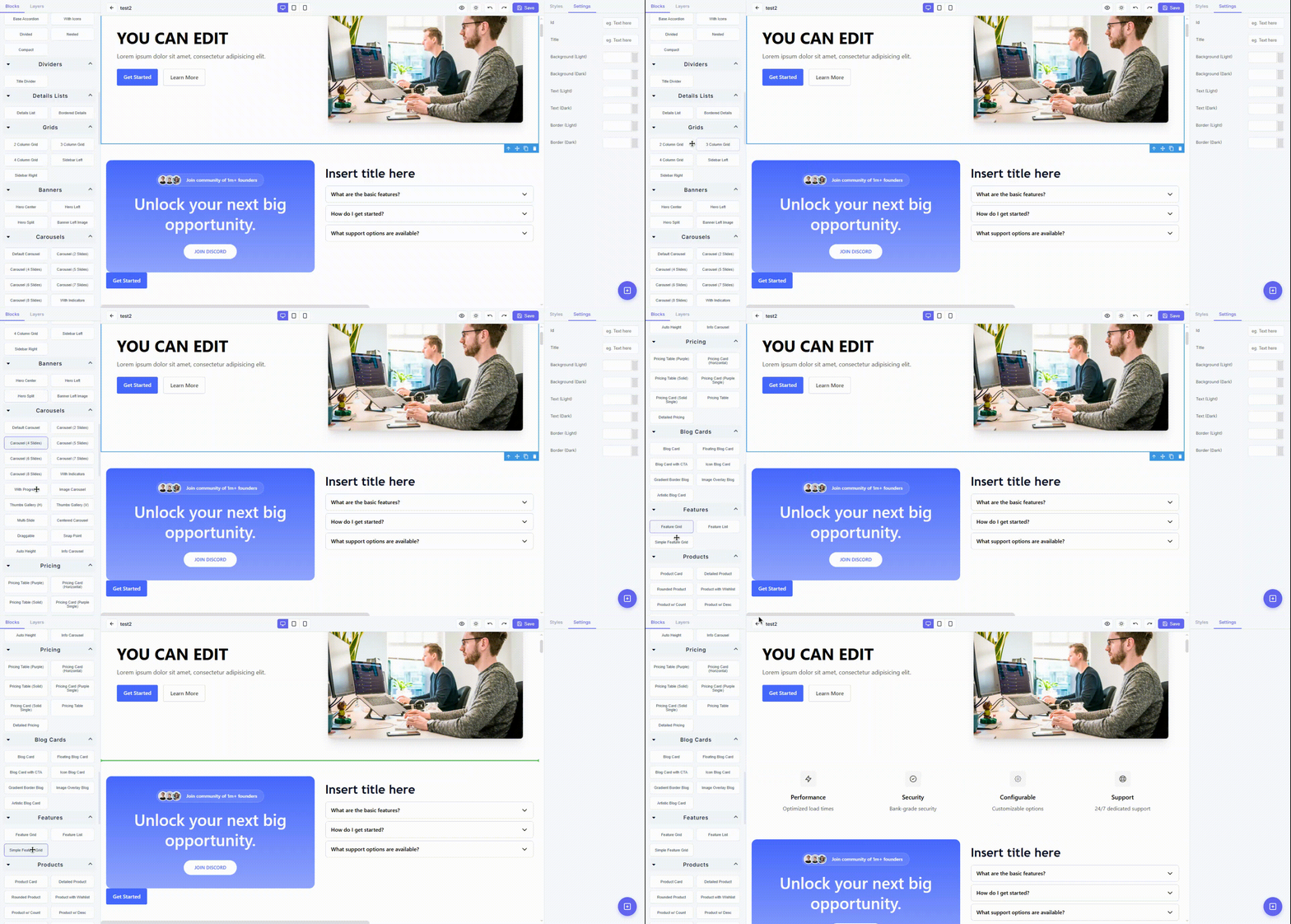
Add a section
- Open Blocks.
- Search or browse for a model.
- Drag it toward the canvas.
- Wait for the placement indicator.
- Drop only when the indicator is in the correct parent and position.
- Select the new section.
- Replace all sample content.
Edit text
Use the Text modal for a complete section
- Select the section.
- Open Text in Properties.
- Review each editable field.
- Replace the content.
- Check the live preview.
- Close the modal and save.
The Text modal is ideal for heroes, pricing cards, FAQs, and other components with many separate labels.
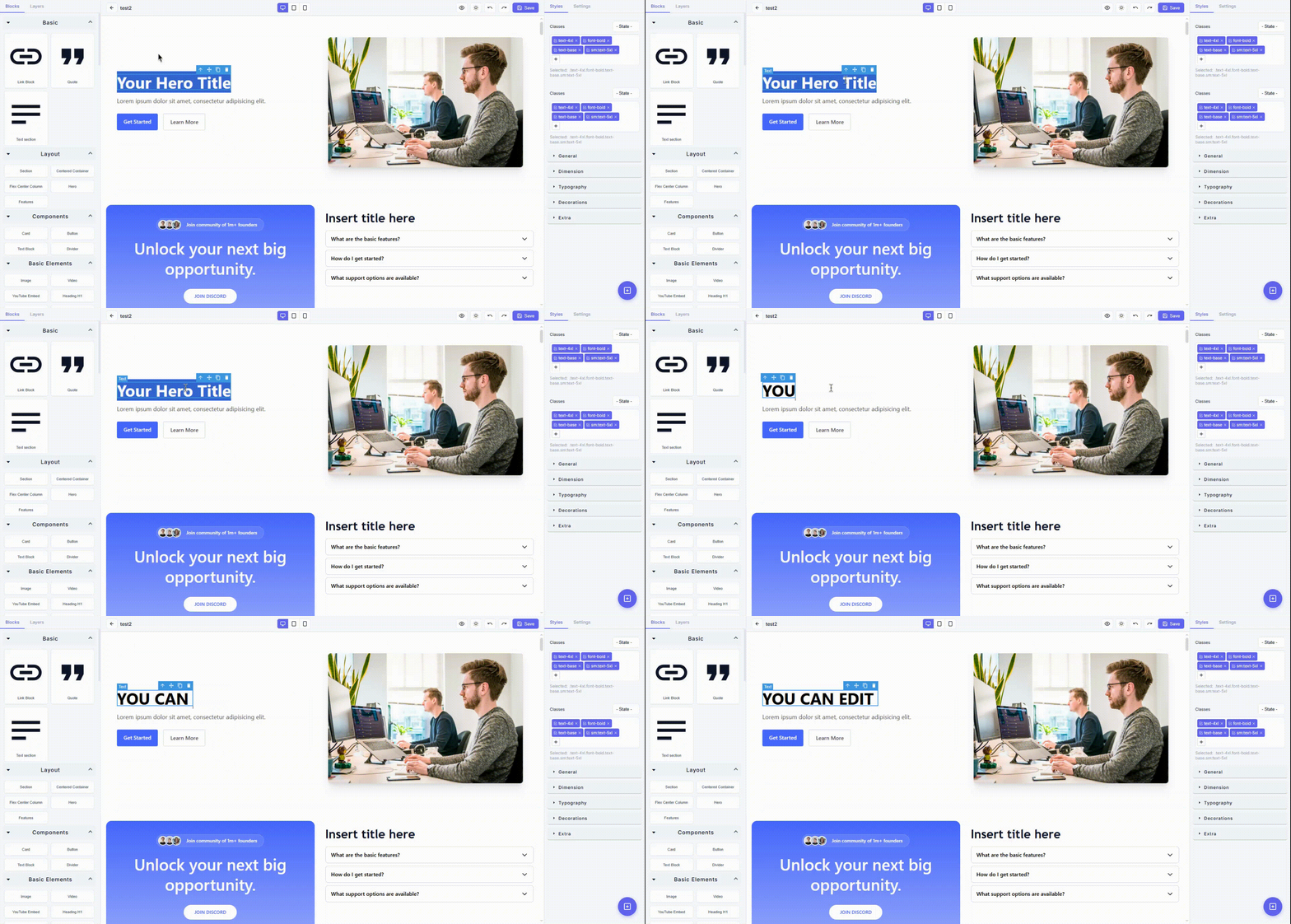
Edit one text node
When a single heading or paragraph is easy to select, edit it directly on the canvas. Use Layers if a nested container is selected instead.
Write scannable copy
- Put the main value in the heading.
- Keep paragraphs focused on one idea.
- Start action labels with a verb: Compare plans, Open a ticket, Start now.
- Preserve approved facts and remove claims you cannot support.
- Use headings in a logical order; a page should not jump from a level-one heading to a level-four heading merely for appearance.
Remove placeholders
Search the entire page for:
- Lorem ipsum and filler copy.
- Sample companies or people.
- Example prices and plan names.
- Old dates, email addresses, and telephone numbers.
#links and temporary destinations.- Placeholder image services.
- Repeated content left after duplication.
Change an image
- Select the image.
- Open Settings.
- Enter the public Image URL.
- Add meaningful Alt Text.
- Optionally add a title.
- Save and verify in full Preview.
PageDesigner stores the URL; it is not a general image-upload manager. The image must be hosted at a stable public URL that the visitor can load.
Write useful alternative text
Describe the information the image contributes.
- Good:
Customer viewing the service dashboard on a laptop - Poor:
Image - Decorative image: use the accessibility convention approved for your site; an empty alt value is appropriate only when the image adds no information.
Review cropping
Check wide and narrow views. A subject centered on desktop can be cropped away on mobile, especially with cover-style images.
Configure links and buttons
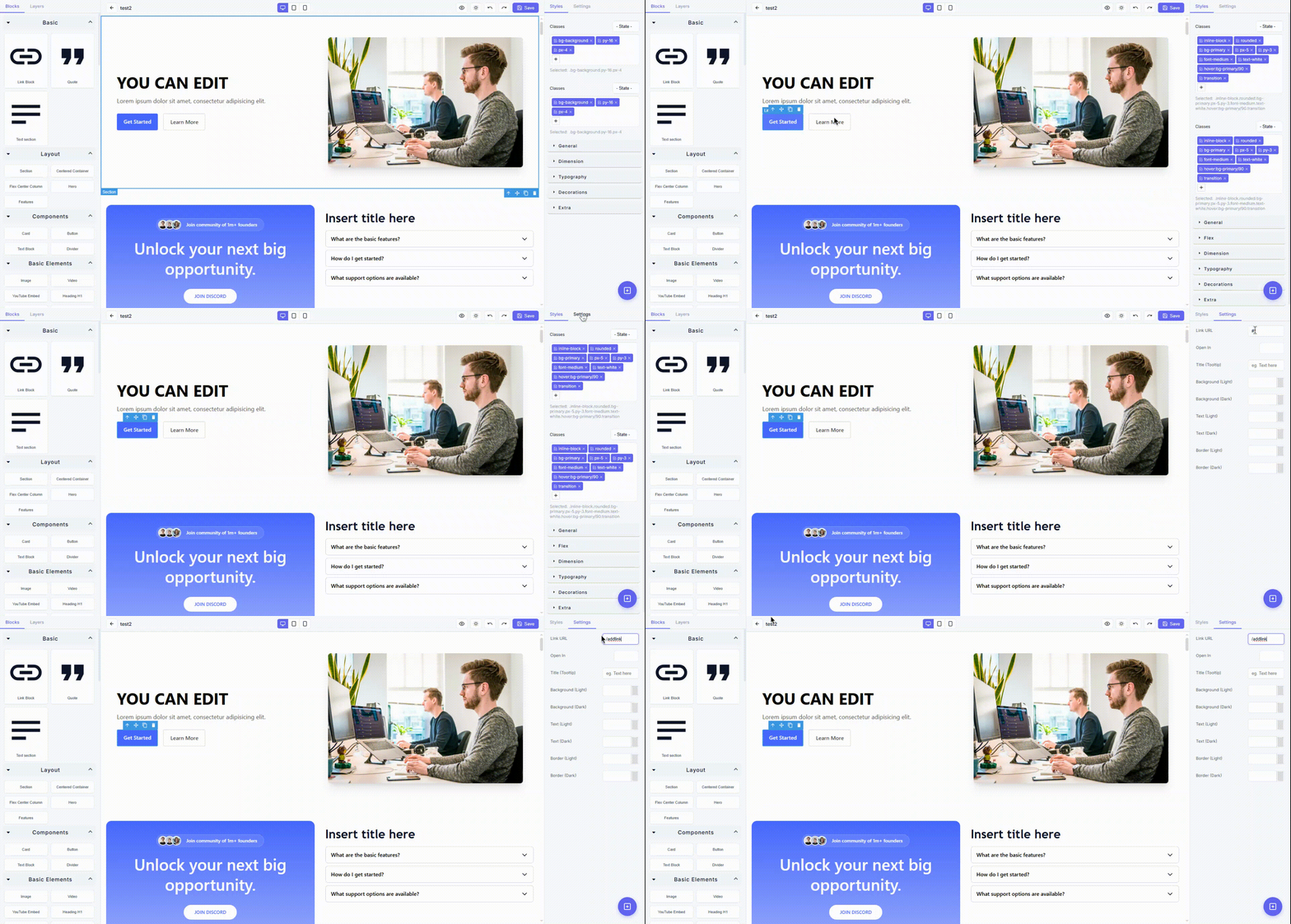
- Select the link, button, or linked image.
- Open Settings.
- Set Link URL.
- Choose Same Window or New Tab.
- Add a tooltip/title only when it gives useful extra context.
- Test in full Preview.
URL patterns
/about-us
/store
https://example.com/resource
mailto:[email protected]
Use a same-site path for PageDesigner or Paymenter routes. Use an absolute HTTPS URL for another website. Use a new tab deliberately, normally for a different site or a document, and make sure the link relationship remains safe.
Linked images
An image may be inside a parent link. If image settings do not contain the destination:
- Use Edit Parent Link when shown.
- Or select the parent link in Layers.
Do not delete and rebuild the image until you have checked its parent structure.
Link checklist
- The destination exists and is public when it should be.
- The label describes the destination.
- The link does not lead to a draft by accident.
- The destination is still correct after importing or reusing a component.
- External destinations use HTTPS where available.
Add or change video
Select the video and configure:
- Video URL / Embed URL
- Show Controls
- Autoplay
- Loop
Prefer controls. Do not rely on autoplayed audio. Add a nearby heading or caption, check the provider's embed rules, and test the result in full Preview on mobile.
Adjust layout and appearance
Select a component and open Styles. A safe order is:
- Correct the structure and order.
- Set width and alignment.
- Establish margin, padding, and gaps.
- Adjust typography.
- Apply theme-aware colors and borders.
- Check desktop, tablet, mobile, light, and dark.
Use documented Paymenter theme tokens instead of hard-coded brand colors. See Styling components and Theme and CSS classes reference.
Select nested content
Many models contain a section, container, grid, cards, links, icons, images, headings, and paragraphs.
If clicking selects the wrong layer:
- Open Layers.
- Expand the section.
- Select the smallest meaningful target.
- Confirm the selection name in Properties.
- Make the change.
For a copy change, target the text node. For spacing around the whole section, target the section. For a link destination, target the link rather than its inner text.
Reorder and remove safely
Reorder
Drag the complete section and watch the placement indicator. After moving:
- inspect the parent in Layers;
- check spacing above and below;
- check mobile;
- test any interaction that depends on order.
Remove
Select the smallest component that solves the problem. Save before a large cleanup. Undo is useful immediately; for important work, a deliberate duplicate or exported/shared draft is a stronger recovery point.
Content quality checklist
- One main visitor goal is clear.
- The first section explains the value and next action.
- Every example value has been replaced.
- Claims, plans, prices, and dates are approved.
- Headings form a meaningful outline.
- Every image has the correct URL and accessibility treatment.
- Every link and button works in full Preview.
- Content remains readable on mobile.
- Light and dark theme review is complete.
- The canvas is saved.